

Transfer a photo vault to a new iPhone without losing a photo
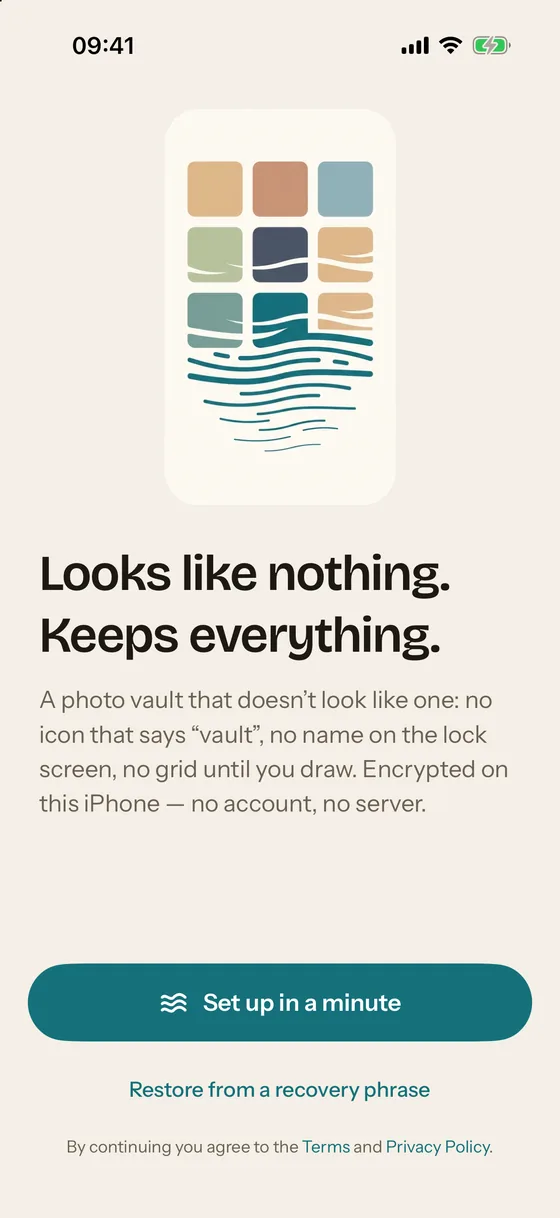
To transfer a photo vault to a new iPhone, install the vault app on the new iPhone and restore from its own backup, not from the iPhone backup: an encrypted vault keeps its keys in the Secure Enclave of the old device, so a device-to-device transfer cannot open it. In Mirage Vault, choose Restore from a recovery phrase on the Welcome screen and type the eight words.
You need: the old iPhone, still set up · the recovery phrase written down · the same iCloud account on the new iPhone.
Why a photo vault does not transfer like other apps
Most apps move to a new iPhone with Quick Start, an iCloud backup or a Finder backup. A photo vault that encrypts properly cannot, and that is a feature. Its vault key is wrapped by a key that lives inside the Secure Enclave of the old iPhone and cannot be exported. Copy the files to another device and they are random bytes with nothing to unwrap them.
So the transfer of a photo vault to a new iPhone is really a restore from the vault’s own backup with the vault’s own portable key. In Mirage Vault that key is the 8-word recovery phrase; the backup is the encrypted iCloud backup that is on by default. If you have both, the move takes a few minutes plus download time.
Transfer the vault to the new iPhone
- On the old iPhone: check the backup
Open Mirage, unlock, go to Settings › Backup. iCloud backup should be on, and the line under it should say when the last upload finished rather than Uploading or Paused. If it is paused, turn it off and on again to continue. Large videos take time; wait for the status to settle.
- On the old iPhone: find the recovery phrase
If you wrote the phrase down at setup, find the paper. The app cannot show it again. If you are not sure the paper is right, Settings › Recovery phrase › Generate a new phrase makes a new one; write it down now and confirm it with Check one word. The old phrase stops working.
- On the new iPhone: same iCloud account, install Mirage
The backup lives in the private database of your iCloud account, so the new iPhone must be signed into the same Apple Account with iCloud Drive on. Install Mirage from the App Store.
- Restore from the recovery phrase
On the Welcome screen tap Restore from a recovery phrase. Type the 8 words in order. Mirage looks for your vault in iCloud, checks the phrase and opens the vault.
- Draw a new pattern and turn Face ID on
Every key bound to the old Secure Enclave (pattern, PIN, Face ID, Wipe Key, decoy) is cleared on the new iPhone because it was wrapped by the old device’s key. Draw a new pattern twice, then turn Face ID on in Settings › Unlock. The decoy vault and Wipe Key, if you use them, are set up again from Settings › Protection.
- Let the photos download
The vault opens with its index at once; the encrypted objects download in the background and Settings › Backup shows Downloading N of M. Thumbnails fill in as files arrive. Keep the app installed and the iPhone online until it finishes.
- Retire the old vault
On the old iPhone, turn iCloud backup off in Mirage so two vaults do not compete for one backup, then erase the iPhone as usual. The new iPhone’s vault continues to back up to the same place.
What the restore does and does not carry
| Item | Comes over | Note |
|---|---|---|
| Photos, videos, notes, scans, files, voice memos | Yes | Downloaded as the same encrypted objects |
| Albums, favorites, vault names | Yes | Part of the encrypted index |
| Recently Deleted items | Yes | With their remaining days |
| Pattern, PIN, Face ID | No | Bound to the old Secure Enclave; set again |
| Decoy vault and Wipe Key | No | Set again in Settings › Protection (Mirage Pro) |
| Break-in records | Yes | Sealed to the vault’s key, which the phrase restores |
| Mirage Pro | Yes | Through Apple; tap Restore in Settings › Mirage Pro |
Not working?
- “No backup found for this iCloud account.” The new iPhone is on a different Apple Account, iCloud Drive is off, or the old iPhone never finished its first upload. Check Settings › Backup on the old iPhone.
- “That phrase does not open this vault.” A word is misspelled or out of order. The phrase uses common English words; type them in lower case, separated by spaces.
- The vault opened but the grid is empty. The index arrived first; the objects are still downloading. Give it time and keep the iPhone online.
- Backup on the new iPhone says “conflict”. The new vault was created fresh instead of restored, and it refuses to overwrite the old vault’s backup. Erase the new vault (Settings › Erase vault and start over) and restore from the phrase instead.
- The old iPhone is already erased and the phrase is lost. The backup cannot be opened. What you can still do lists the remaining options; they are few.