

How to hide photos on iPhone: the Hidden album, and when you need a vault
To hide photos on iPhone, open a photo in the Photos app, tap the More button (three dots), choose Hide and confirm. The photo moves to the Hidden album under Utilities, locked with Face ID. The Hidden album is not encrypted separately: anyone with your passcode can turn it back on. For photos that must stay private, a vault app encrypts them under their own key.
You need: iPhone with iOS 17 or later · the Photos app.
Hide photos on iPhone with the Hidden album
The Photos app has had a Hidden album for years, and since iOS 16 it is locked with Face ID and left out of search, widgets and Memories. For photos you simply do not want in the main grid, it is enough. These labels are from iOS 26; iOS 17 and 18 use the same words in slightly different places.
- Open the photo, or select several
In the Photos app, open one photo. To hide several at once, tap Select at the top, then tap each photo.
- Tap the More button, then Hide
Tap the More button (three dots) at the top right. Choose Hide, then confirm Hide Photo (or Hide Photos). The photo disappears from the Library and from every album it was in.
- Check that the Hidden album is locked
Open Settings › Apps › Photos. Use Face ID should be on, and Show Hidden Album decides whether the album appears in the Photos app at all. Turning Show Hidden Album off hides the album itself, not just its photos.
- Find hidden photos again
In Photos, open the Collections tab, scroll to Utilities and tap Hidden. Unlock with Face ID. To bring a photo back, open it, tap More and choose Unhide.
What the Hidden album does not protect
The Hidden album hides photos from view. It does not protect them from anyone who can unlock the iPhone, and that is the difference that matters.
| Situation | Hidden album | Encrypted vault app |
|---|---|---|
| Someone scrolling your Library or albums | Protected: hidden photos are not there | Protected: they are not in Photos at all |
| Someone who knows your iPhone passcode | Not protected: Face ID falls back to the passcode, and Show Hidden Album is behind the same passcode | Protected: the vault has its own pattern and key; the passcode does not open it |
| A copy of your photo library or iPhone backup | Not protected: hidden photos are ordinary files in the library | Protected: files are encrypted, and the key is bound to the Secure Enclave of the iPhone |
| Someone forcing you to unlock | Not protected | A decoy vault and a Wipe Key exist for exactly this (Mirage Pro) |
| Hiding the fact that hidden photos exist | Partly: Show Hidden Album off removes the album from the list | The lock screen shows no name and no grid; the icon can be changed |
Hide photos on iPhone in an encrypted vault
A vault app moves photos out of the Photos library into its own encrypted container. With Mirage Vault, this is the whole routine:
- Set up the vault once
Open Mirage, draw a pattern anywhere on the blank screen (at least five dots in one stroke), draw it once more, and turn on Face ID. The whole setup takes about a minute and asks for no account.
- Add the photos
Tap the + button and choose Add from Photos. Pick the photos; each one is encrypted the moment it arrives. HEIC files stay HEIC, Live Photos stay paired.
- Decide about the originals
A toast asks Delete the originals from Photos? Tap Delete and iOS shows its own confirmation. The originals go to the Recently Deleted album of Photos for 30 days; empty that album if you want them gone now.
- Lock
The vault locks when you leave the app. The lock screen is blank: no name, no grid until you touch it.
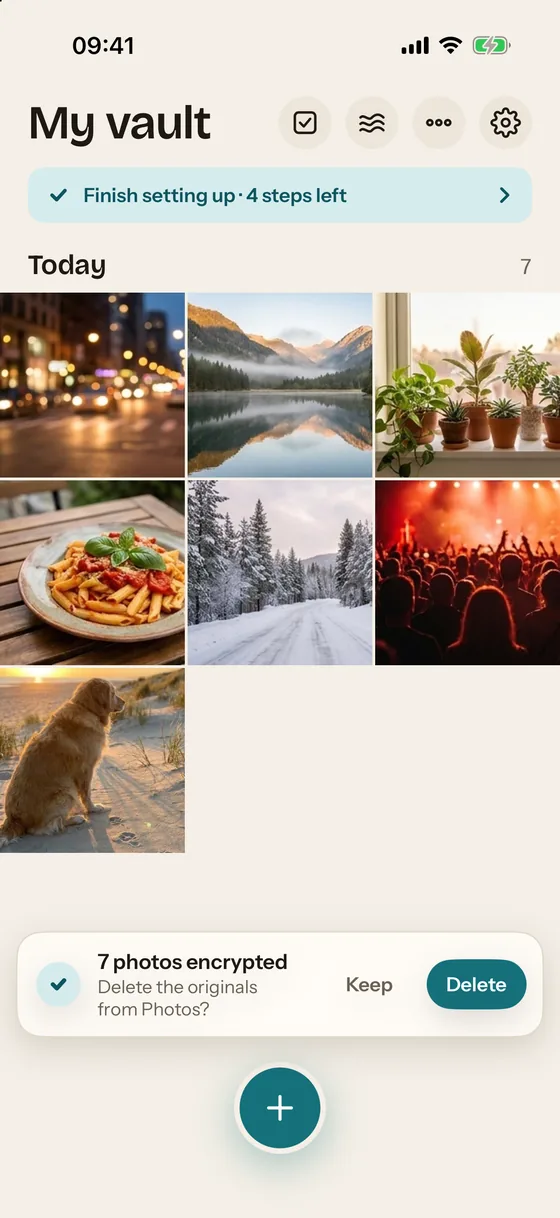
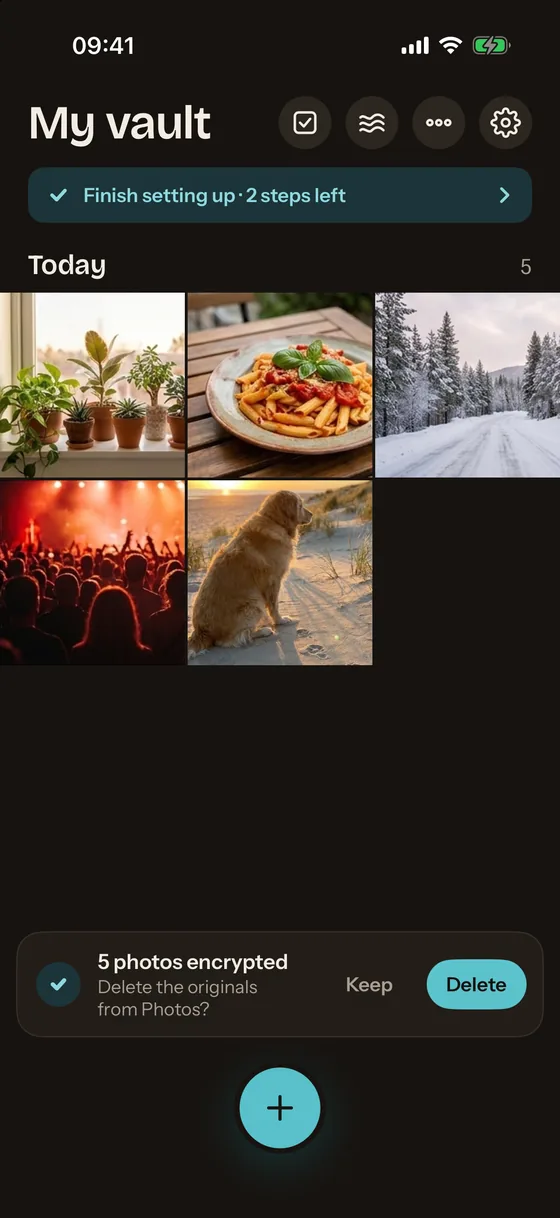
Inside the vault, every photo is a separate encrypted file under its own key; the vault key is wrapped by a key in the Secure Enclave, so a copy of the files cannot be opened on another device. Up to 100 photos and 10 videos are free, with encrypted iCloud backup included. How the encryption works, and what it cannot do, is on the security page.
Other ways to hide photos on iPhone
- Lock the whole Photos app. Hold the Photos icon, choose Require Face ID. This locks the app, not individual photos, and has the same passcode fallback.
- A separate album. Albums are organisation, not hiding; everything in an album is still in the Library.
- Hidden album with Show Hidden Album off. The strongest the built-in option gets: the album is not listed, and turning it back on needs the passcode.
- A vault app. The only option that encrypts the photos under a key the iPhone passcode does not open. Choose one that names its cipher and keeps the key on the device; are photo vault apps safe lists what to check.
Not working?
- No Hide option in the menu. Shared albums and some synced libraries do not allow hiding; copy the photo to your library first.
- The Hidden album is missing from Utilities. Show Hidden Album is off in Settings › Apps › Photos. Turn it on, open the album, then turn it off again if you prefer.
- Hidden photos reappeared on another device. They did not: the Hidden album syncs through iCloud Photos, and the other device shows its own Hidden album under Utilities.
- A hidden photo is still in Recents. Recents in Photos shows recent additions; hidden photos are removed from it. If you see the photo, it is a duplicate or a screenshot.