

A photo vault app with Face ID: how Mirage uses it, and where it stops
Mirage Vault opens with Face ID the moment the app comes to the front. The Face ID key lives in the Secure Enclave and is bound to the faces enrolled when you turned it on: a newly added face does not open the vault, and there is no fallback to the iPhone passcode. The pattern keeps working whenever Face ID cannot, and Face ID never opens the decoy vault.
What Face ID in a photo vault app should mean
Many apps “support Face ID” by asking iOS to authenticate and then opening whatever they were going to open anyway. If Face ID fails, iOS offers the device passcode, and the app accepts it. In a vault, that turns the iPhone passcode into a vault password, which is exactly the secret a partner, a parent or a colleague is most likely to know.
A photo vault app with Face ID done properly ties a cryptographic key to the biometric rather than to a yes/no answer. In Mirage Vault, Face ID has its own key in the Secure Enclave, created with the .biometryCurrentSet policy: the key can be used only when the current set of enrolled faces matches the set at creation, and it is never usable with the passcode. Face ID is not a shortcut around the vault key; it is a second wrapping of it.
How Face ID works in Mirage Vault
- Turn it on once, after the pattern
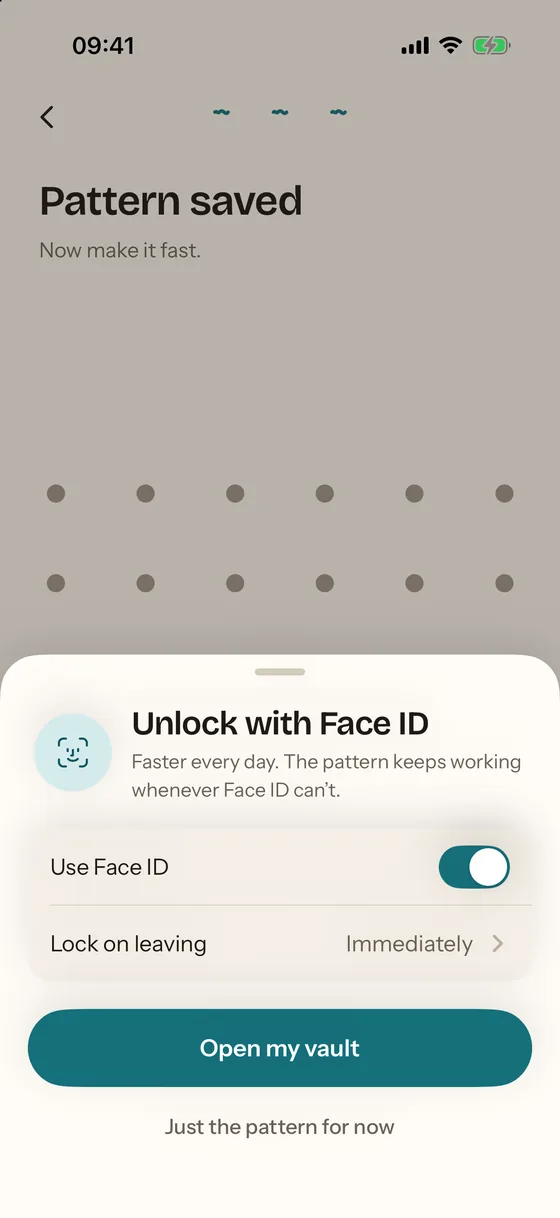
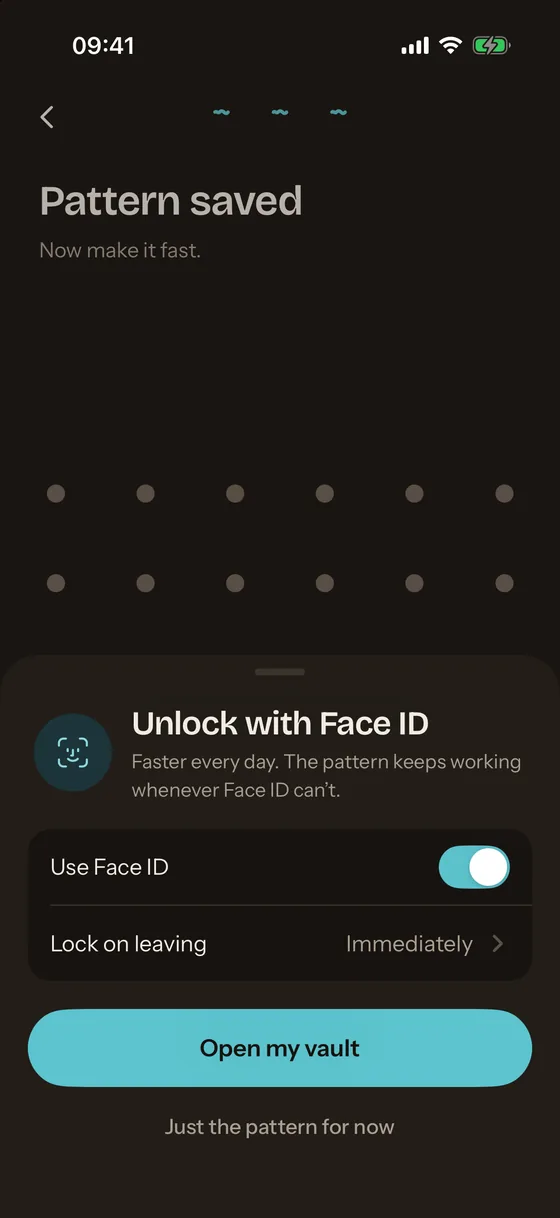
During setup, right after you draw the pattern twice, a sheet offers Use Face ID (on by default) and Lock on leaving. Open my vault asks iOS for Face ID permission and creates the key. It can be turned on later in Settings › Unlock › Face ID.
- Unlock
Face ID fires as soon as the app comes to the front. A match unwraps the vault key through the Secure Enclave; the grid appears. No match leaves the blank lock screen waiting for the pattern. There is no Enter Passcode button, on purpose.
- Lock
The vault locks when you leave the app (immediately, after 10 seconds or after 1 minute, your choice), when the iPhone is placed face down, on a two-finger swipe down, or with the haze button in the header. The next unlock is Face ID again.
- When the faces change
Adding, removing or re-enrolling a face on the iPhone invalidates the vault’s Face ID key. The app does not fail silently: the next launch asks for the pattern, and Face ID is turned on again from Settings, which creates a new key for the new set of faces.
Face ID and the other doors
| Door | Opens the real vault | Opens the decoy | Subject to the attempt lockout | Works on a new iPhone |
|---|---|---|---|---|
| Face ID | Yes | Never | No | No: the key is in the old Secure Enclave |
| Pattern | Yes | Only the decoy’s own pattern | Yes, 5 free attempts then 30 s doubling to 1 hour | No |
| PIN (backup or primary) | Yes | No | Yes | No |
| Recovery phrase | Yes | No | No | Yes, the only one |
| iPhone passcode | No | No | — | — |
The last row is the one that separates a vault from a locked album: the iPhone passcode never opens the vault, with or without Face ID.
Where Face ID stops
Lock timing options
- Lock on leaving: Immediately. The default. Switching apps or going to the Home Screen locks the vault and covers the app-switcher snapshot.
- After 10 seconds / After 1 minute. For copying something between apps without re-unlocking. The vault still locks when the iPhone is placed face down or on a two-finger swipe down.
- Lock when face down. On by default: screen down on the table for half a second locks the vault.
- Show the grid. An accessibility option that draws the pattern dots at full opacity instead of the faint grid; it does not change Face ID.
Face ID is free in Mirage Vault, on every plan. The decoy vault that Face ID never opens is part of Mirage Pro; how the decoy works explains the pairing.