

How to hide an app on iPhone: a different icon and name, or Hide and Require Face ID
To hide an app on iPhone, give it a different icon and name: a Shortcut with the Open App action, added to the Home Screen with your picture and name, with the original icon removed. Or, on iOS 18 and later, touch and hold the app and choose Hide and Require Face ID: it moves to a locked Hidden folder.
You need: iPhone with iOS 18 or later for the Hidden folder · the Shortcuts app · a picture for the new icon.
Three ways to hide an app on iPhone, and what each one hides
Hiding an app on iPhone means one of two things: a disguise, where the app sits on the Home Screen under another picture and name, or a lock, where iOS takes the app off the Home Screen and out of search until Face ID shows it again.
| Way | Off the Home Screen | Where the app still shows | Needs |
|---|---|---|---|
| A Shortcut with your own icon and name, the original icon removed | Yes: the tile carries your picture and name | App Library, Search and the Shortcuts app, by its real name and icon | The Shortcuts app |
| Remove from Home Screen alone | Yes | App Library and Search | Nothing |
| Hide and Require Face ID | Yes, and out of App Library and Search | A locked Hidden folder at the bottom of App Library; Settings › Apps › Hidden Apps; Screen Time; Battery; the App Store purchase history | iOS 18 or later, a passcode on the iPhone, an app you downloaded |
| Require Face ID without hiding | No | Everywhere, but the app asks for Face ID to open | iOS 18 or later |
The Shortcut route below was checked on iOS 26.4 on 10 November 2026, with Mirage Vault as the app and a generated picture as the icon. The lock-and-hide steps come from Apple’s guide and from the strings inside iOS, without screenshots.
Hide an app behind a different icon and name
Twelve taps plus typing the name.
- Open Shortcuts and tap the plus button
A new shortcut opens straight into the action picker, with Open App among the suggested actions. Tap it.
- Pick the app
Tap App in the Open App row and choose the app from the list. The row now reads Open followed by the app’s name.
- Tap the info button, then Add to Home Screen
The info button sits at the bottom of the editor. Add to Home Screen is the first row of the Details sheet it opens; older guides put it under the chevron next to the title.
- Set the picture
In the Home Screen sheet, tap Image, then Choose Photo (or Take Photo, Choose File). Pick a picture and tap Choose on the crop screen. The Add button turns blue only once a picture or a symbol is set.
- Type the name
Tap the name under the icon preview, delete the default, type your own. Autocorrect works on this field: in the test it turned a typed “Memo” into “memo”, so check the preview before the next step.
- Tap Add
The tile appears on the Home Screen with your picture and name, next to the real icon, which is still there.
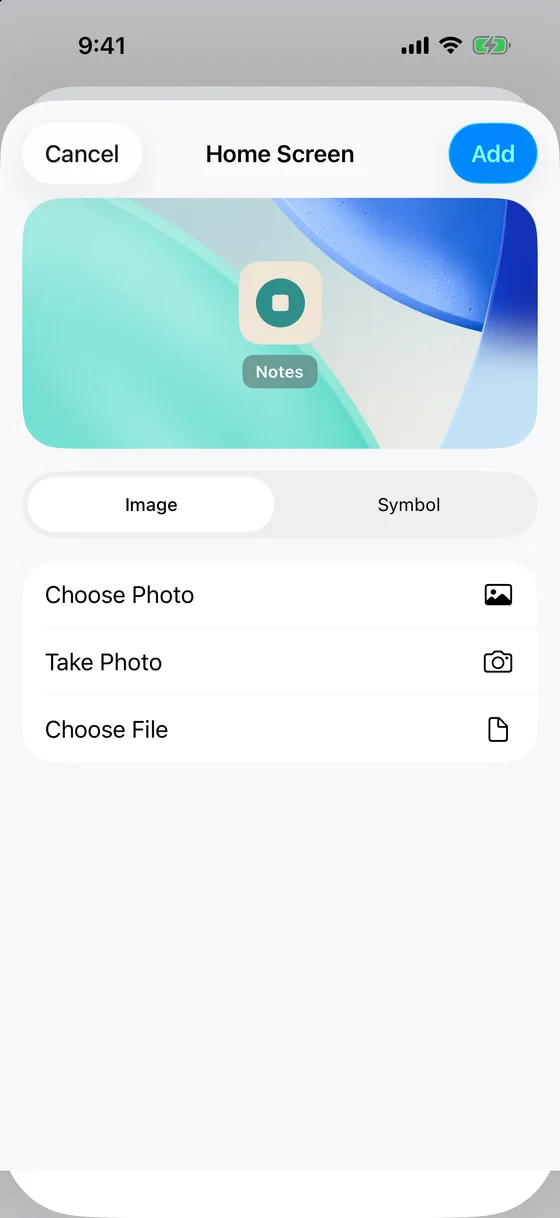
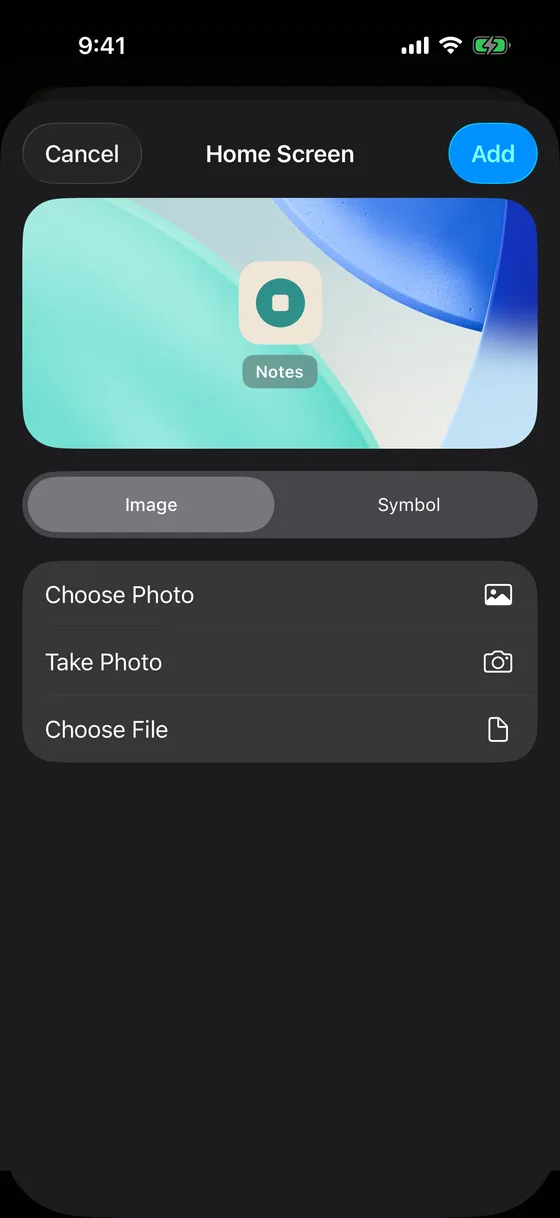
Tapping the tile opened Mirage directly: four screenshots in the ten seconds after the tap showed no banner at the top and no detour through the Shortcuts app. Guides written for iOS 14 and 15 describe the Shortcuts app flashing first; on iOS 26.4 it did not.
Take the original icon off the Home Screen
- Touch and hold the real icon, tap Remove App
The alert is titled with the app’s name and says: “Removing from Home Screen will keep the app in your App Library.” Its buttons are Remove from Home Screen, Delete App and Cancel.
- Tap Remove from Home Screen
The icon disappears; your tile stays. Delete App would remove the app and its data.
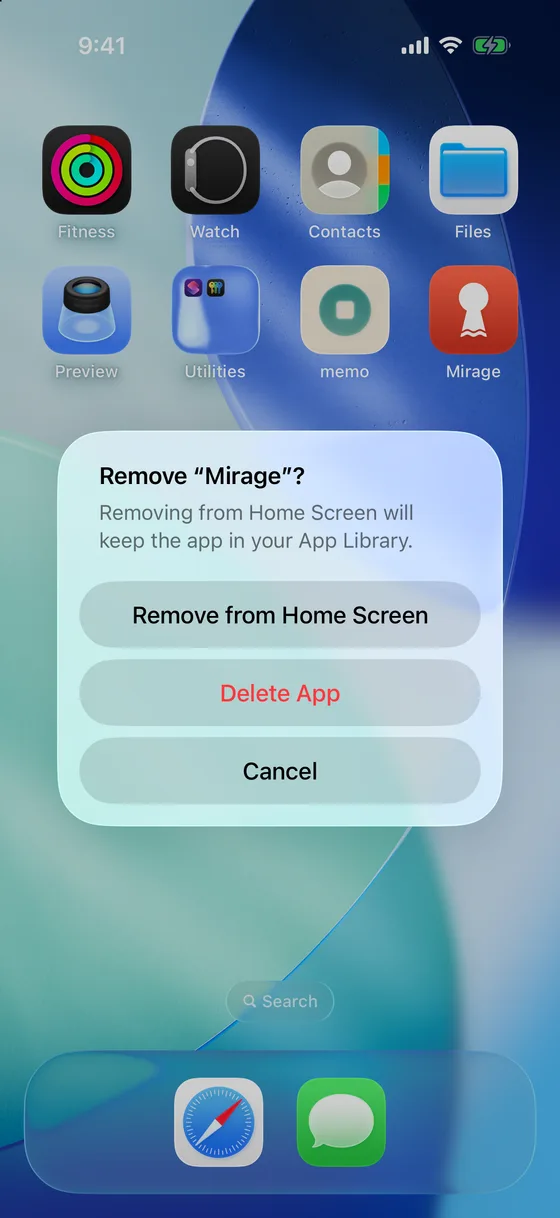
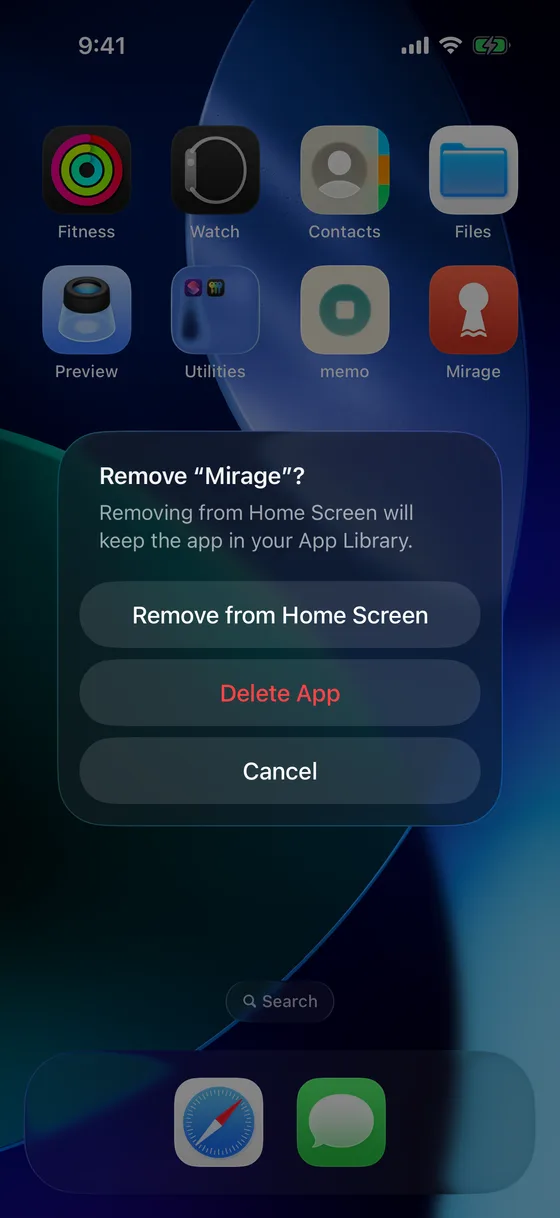
What the app still shows after that, in the same test:
- App Library lists it under its category by its real name and icon, and lists your tile under Webclips.
- Search finds it: both the App Library search field and the Search button on the Home Screen returned the app as the top hit by its real name.
- The Shortcuts app shows the shortcut as a card named Open App with the real app’s icon in its corner, and the Details sheet says why Search knows about it: “Allow “Open App” to appear in Search. This shortcut will also appear when searching for “Mirage.”” Turn Show in Search off in that sheet if the tile should not come up under the app’s name.
- Deleting the app leaves the tile on the Home Screen, and tapping it then does nothing visible. After a reinstall, the same tile opened the app again.
Hide and Require Face ID: the built-in way on iOS 18 and later
- Touch and hold the app, tap Require Face ID
On the Home Screen or in App Library. The menu now shows a second item.
- Tap Hide and Require Face ID
The alert reads “Hide and Require Face ID for” the app, with the explanation iOS gives: “This app will no longer be visible on your iPhone, except in a few places such as Settings. Face ID or your passcode will be required to reveal, open, or use Siri with the app.”
- Authenticate, then tap Hide App
The app moves to the Hidden folder at the bottom of App Library. Opening the folder asks for Face ID. To bring the app back: open the folder, touch and hold the app, tap Don’t Require Face ID and authenticate; it returns to the Home Screen and near the top of App Library.
The boundaries, from Apple’s page on locking and hiding apps: apps that come with iOS cannot be hidden, and Calculator, Camera, Clock, Contacts, Find My, Maps, Shortcuts and Settings cannot be locked either; the locked or hidden status does not sync with iCloud; children under 13 cannot lock or hide apps. One more comes from iOS itself: the feature needs a passcode on the iPhone. iOS carries the message “iPhone Passcode Required” for it.
A hidden app also goes quiet. Settings › Notifications says it in one sentence: “Hidden apps are not allowed to send notifications.” A locked app that is not hidden keeps notifying, without previews.
What a hidden app still shows
Neither route makes an app invisible. The Shortcut tile is a disguise for the Home Screen only: App Library, Search, the Shortcuts app and Settings › Apps keep the real name and icon. The Hidden folder is a lock plus hiding: the app’s name stays in Settings › Apps › Hidden Apps behind Face ID, in Screen Time, in Battery and in the App Store purchase history. The Hidden folder itself sits at the bottom of App Library on every iPhone, so its presence proves nothing.
Not working?
- No Require Face ID in the menu. The app came with iOS, the iPhone runs iOS 17 or earlier, or no passcode is set. The Shortcut route works in all three cases.
- Add stays grey in the Home Screen sheet. No picture or symbol is set yet.
- The name came out in lower case. Autocorrect changed it. Tap the name, retype it and dismiss the suggestion.
- The tile does nothing. The app behind it was deleted. Reinstall it; the tile works again without changes.
- The tile shows up when someone searches for the app. Open the shortcut in Shortcuts, tap the info button and turn Show in Search off.
When hiding the app is not enough
A new icon hides an app from a glance; a hidden folder hides it from a scroll. Neither does anything for what is inside the app: a photo in a Photos app locked with Face ID is still a photo that the iPhone passcode opens, and hiding photos on an iPhone has the same limit with the Hidden album.
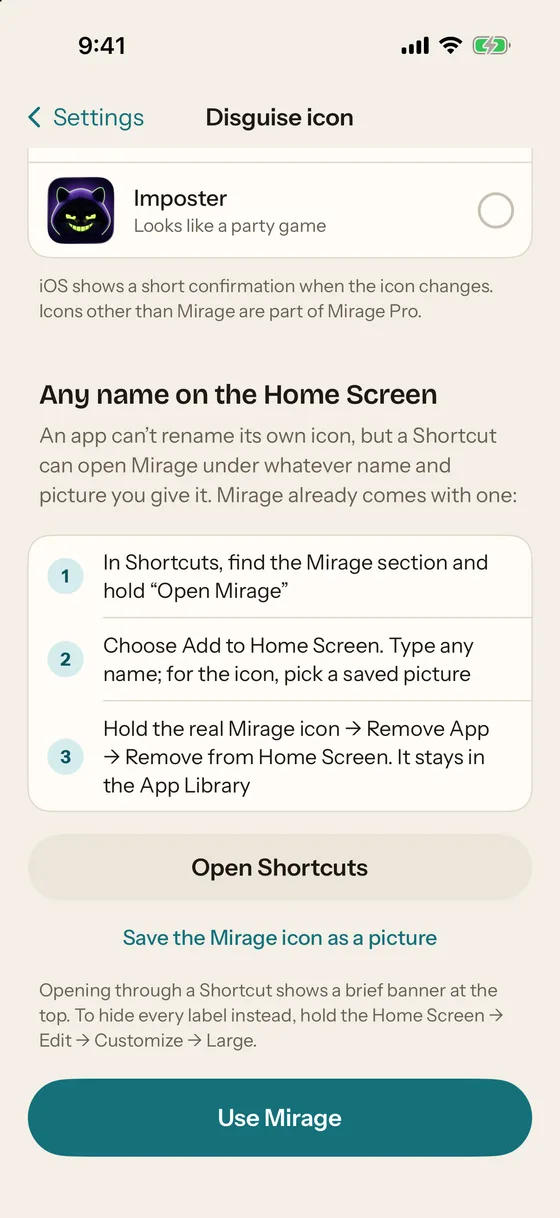
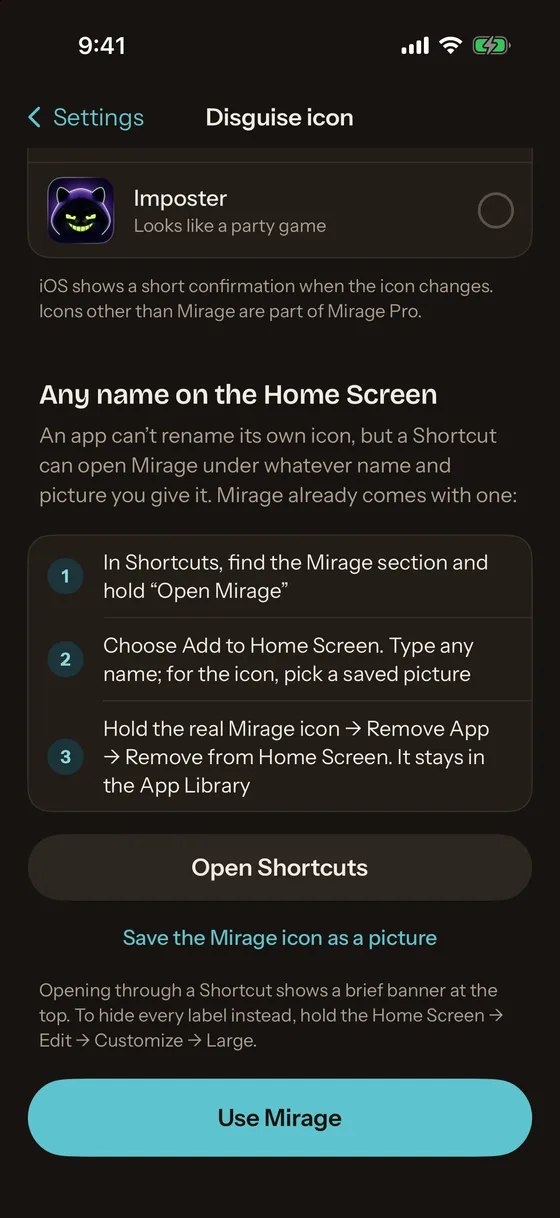
Mirage Vault treats the two separately. The photos are encrypted on the iPhone with AES-256-GCM under their own keys, so the icon is only about who notices the app. Mirage Pro can switch the Home Screen icon to one that does not look like a vault; the label under it stays “Mirage”, because iOS lets no app rename itself, and iOS shows a short confirmation when the icon changes. For a different name, the app ships its own “Open Mirage” shortcut: in the Shortcuts library, touch and hold it under Mirage, tap Add to Home Screen, and the same sheet as above takes any name and picture. The lock screen shows no name and no grid until you touch it. The icon switch and its limits are on the features page.
Sources, read on 10 November 2026: Apple, Lock or hide apps on your iPhone (October 2025); Apple, Add a shortcut to the Home Screen; Apple, Create a custom shortcut. Quoted iOS sentences come from the English text of iOS 27.1 and iOS 26.4.